Michigan
State University College of Engineering
ECE 480 Team
7
Ryan
Lupinski
11/08/13
The purpose of this tutorial is
to guide a person through the process of creating a working printed circuit
board (PCB) using the free software PCB Artist from 4PCB.com. The tutorial will
give a brief introduction to the tool followed by a step by step process of
selecting components in the component library, designing a circuit schematic,
and finally laying out the schematic to a PCB.
Background
PCB Artist
is a free PCB schematic and layout tool provided by Advanced Circuits. It is an
intuitive and simple program that includes a large library to select components
from while also allowing users to create their own symbols. A drawback,
however, is the program’s omission of Gerber (.gbr) files, that are universal
fabrication files, but a .fab file. This requires the user to order directly
from Advanced Circuits.
PCB
functionality
PCB’s are made of ‘layers’. The
common PCB will have 2 or 4 layers, consisting of metal layers, silkscreen
layers, and solder mask layers. Components are placed on the upper-most layer
and traces will run from connection pads on the component to various
components, supplies, ground, etc. The use of multiple layers gives dimensional
flexibility to the user by being able to jump up and down from layers to avoid
crossing traces on a single layer. ‘Footprints’ for the surface connection of
components are created and the user can specify how the metal traces connect
each component. When the user is satisfied with the layout, the board and it’s
layers and traces are fabricated and sent to the user so they may populate the
board by soldering components to their proper ‘footprint’ on the board.
Beginning a project
To
begin a new project open PCB artist then go File->New. Select the option for
a New Project and create a proper path to save the project. You must follow the
same process to add a New Schematic and New PCB Design, and select ‘Add To Open
Project’ for each. This is shown in Figure
1. This combines the Project (.pjr), Schematic (.sch), and PCB (.pcb) files
together for consistency.

Figure 1. (left to right) New Project, New
Schematic, New PCB Design
Creating a schematic
A schematic
is a symbolic representation of a circuit the user wishes to design. PCB artist
offers a wide range of components in its Component Library and also offers the
user a “Wizard” if they want to create a custom symbol. This tutorial will not
cover the creation of custom symbols. Figure
2 shows a blank schematic and numbers corresponding to [1] the add
component button, [2] the component library, [3] and the trace button. For this
tutorial, a simple low pass filter will be created using an OPA33AIDG4 op amp.
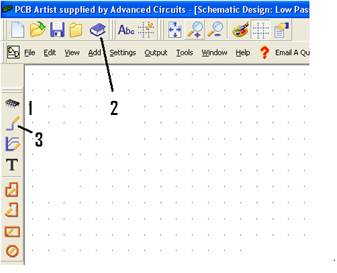
Figure 2 Schematic
design space
The first
step is to select your component by either clicking the ‘add component’ button
[1] seen in Figure 2. Figure 3 shows
the Add component pop up window and the Find pop up window which can help you
search a component by name.
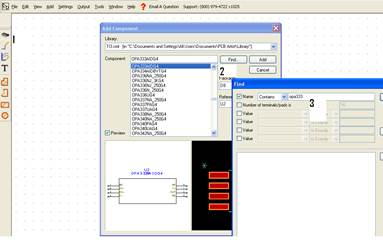
Figure 3. Add
component window and Find window
The next
step is the hit close on the Find pop up window and then click add in the Add
Component library. Lastly you can position the component symbol in the
Schematic design space. Now minor
components such as resistors and capacitors can be added to the schematic. These
can be found using the same process, but rather than searching OPA333 in the
find window, the user can search resistor or capacitor. Once all the components
are selected and added to the Schematic design area, the connections between
the components can be made. Figure 4 shows both a complete and
incomplete connection between component and wire nodes that connect the
feedback loop of the op amp through the resistor. Wiring components together
can be done by clicking on the trace button [3] in Figure 2 and then drawing a path between two components.
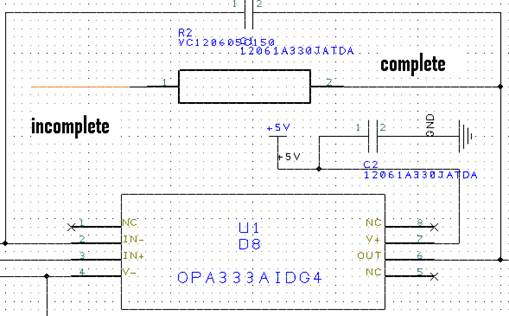
Figure 4. Complete
and incomplete wiring
Once all the
components are placed in the design space in a logical pattern and wired
properly the user can send the schematic to PCB layout. The final low pass
circuit schematic can be seen in Figure
5.
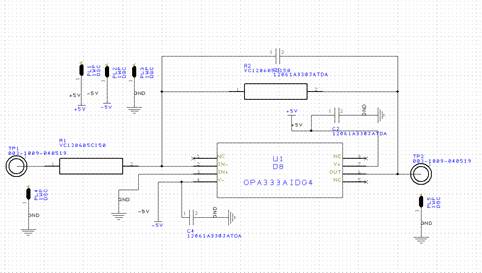
Figure 5.
Fully populated schematic
Creating the PCB
The next
step is to transfer the schematic to PCB layout. This is done from the schematic design space
by selecting Tool>SchematicßàPCB>Translate
to PCB. Figure 6 shows the PCB
Design Setup wizard that will walk the user through PCB specifications.
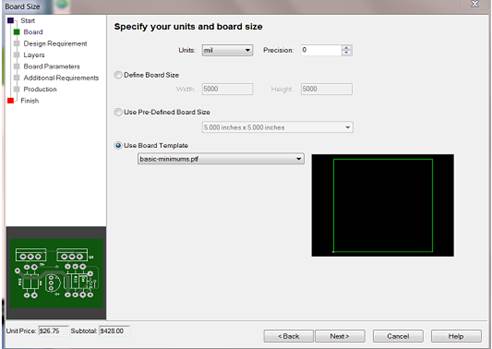
Figure 6.
PCB Design Setup Wizard
Set units to
‘mils’ and precision to ‘0’ and select Use Board Template. The next step lets
the user select a 2 or 4 layer board. This tutorial will proceed with a 2 lay
set up. Hitting next until arriving at the Production stage uses default values
for layers and additional parameters. The user can specify other values during
the set up if desired. Figure 7
shows the production step where the board will be named, turnaround time
selected, quantity selected, and pricing will be shown. These can be changed as
desired and 5 days turnaround time is the recommend selection for time and cost
purposes.
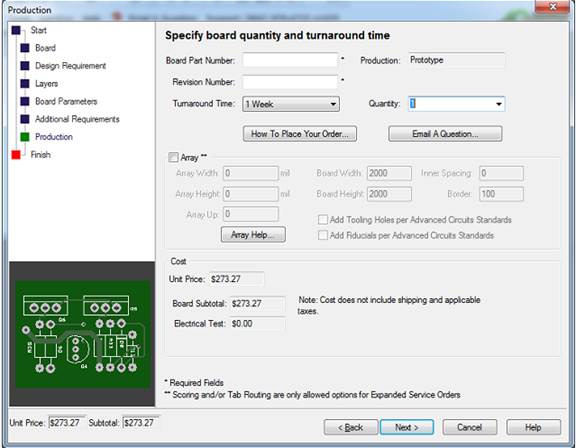
Figure 7. Production step of set up wizard
Hit
next and chose to have components placed outside of the board. The user may now
drag components into the green region and begin making trace connections. Figure 8 shows components placed on the
board. Yellow ‘rubber bands’ indicate connections that need to be made.
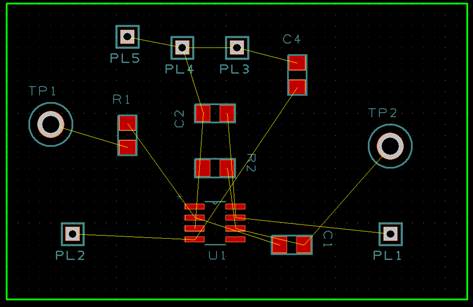
Figure 8 Arranged components with connection
indicators
Components can be rearranged and
traces between them can be made. Traces are copper paths that allow for
electrical connection between components. Traces on common layers MUST NOT OVERLAP. The use of 2 layers
allows for a bottom layer to be used as ground or another plane for traces to
jump between layers by use of a via. Figure
9 shows a complete 2 layer board.
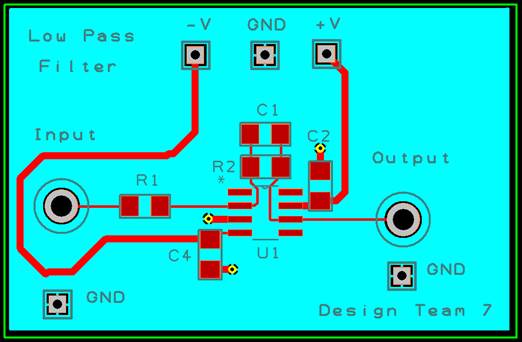
Figure 9 Completed Low pass filter PCB
The blue
layer shows the bottom layer of the PCB which has been dedicated to ground.
This allows for any connection made through a via (the small yellow circles) to
connect the top layer to the bottom layer. It can be noted that the GND symbol
at the top has connections to the bottom layer by allowing the blue region of
copper (ground) to have traces over the connection. This creates a common
ground for the board. This concludes the design of the PCB and is now ready for
fabrication.